Input lag is that annoying delay where you’ve already flicked your mouse or clicked LMB, but what happens on screen feels like it comes with a tiny pause. In PvP it feels like “stickiness.” In other words, tracking targets gets harder, spray control feels less consistent, and in close-range fights you’re always missing that one millisecond you need to win the trade. The good news is that you can genuinely reduce part of that delay with the right settings. The bad news is you can’t always fix it, because latency is made up of several different pieces - and Reflex only helps in certain scenarios.
What input lag is and why it happens
Input lag is the total delay between your action (mouse click, mouse movement, keyboard input) and the moment you actually see the result on screen. You can break it down into peripheral latency, PC latency (game + rendering), and display latency.
In Rust, input lag usually gets worse for three reasons:
-
Unstable frametime (micro-stutters, hitching, frame spikes)
-
A render queue building up on the CPU/GPU side (the game prepares frames ahead of time)
-
Sync settings and display mode (V-Sync, FPS limiting, borderless windowed mode)
There’s one important thing people still mix up: FPS and latency are not the same. You can have decent average FPS but awful frametime, and the game will feel heavy. Frametime is how long it takes to render a single frame. If it fluctuates, you feel it as stutters and micro-delays. FPS is simply how many of those frames your PC outputs per second.
A few words about CPU and GPU:
When you’re CPU-bound (CPU bottleneck), the game can’t keep up with simulation, physics, networking, scripts, and the GPU ends up waiting. In Rust, this is common on high-pop servers and in big fights where one area is packed with players, explosions, and structures.
When you’re GPU-bound (GPU bottleneck), your graphics card is simply overloaded: high shadows, long draw distance, heavy post-processing, high resolution, anti-aliasing, and so on.
What NVIDIA Reflex does
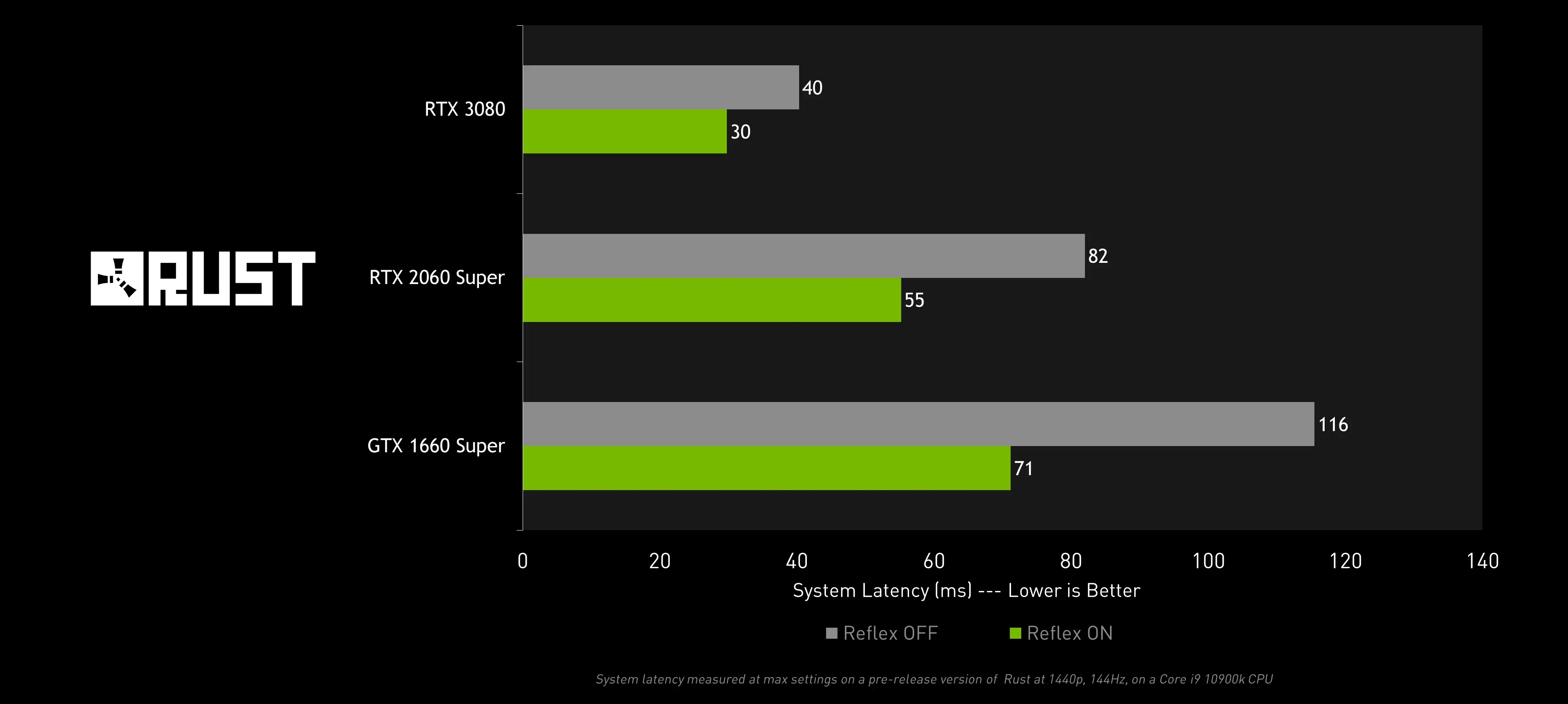
NVIDIA Reflex is a technology that reduces the render queue and improves the synchronization between the CPU and GPU, so the frame that includes your input is pushed closer to the end of the pipeline and reaches your screen faster. In NVIDIA materials about Rust, they specifically highlight that Reflex is enabled in the in-game settings and can noticeably reduce overall system latency.
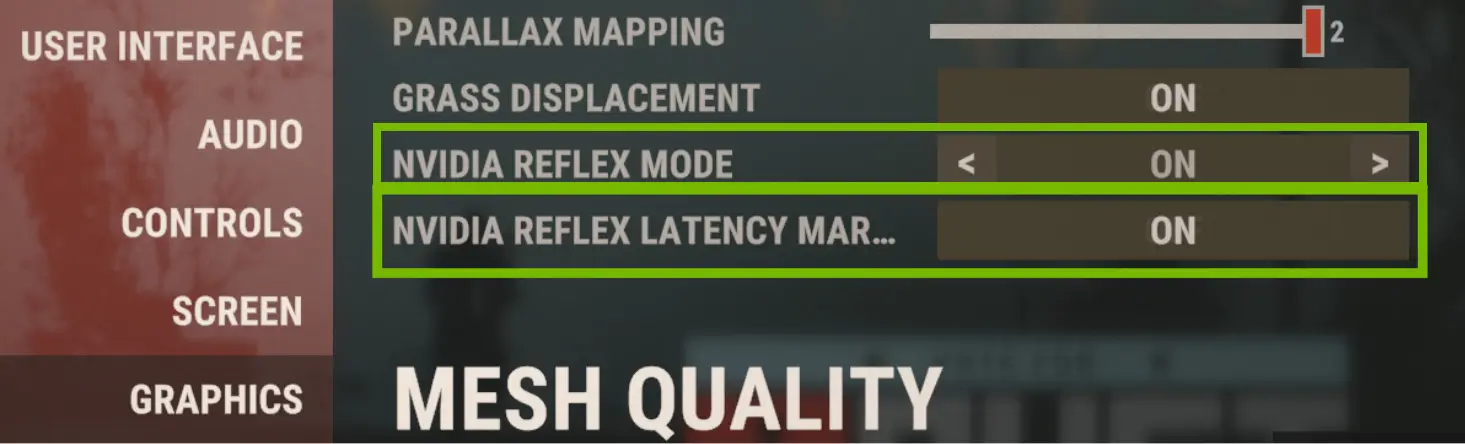
One more useful feature: Rust includes a Reflex Latency Flash Indicator. It’s basically a flash marker used for measuring latency when you have a monitor that supports the Reflex Latency Analyzer.
Off / On / On+Boost - what the modes mean
Off means Reflex is disabled. The game and driver can keep a longer queue of frames, so latency is usually higher.
On is the standard mode. It reduces the queue and tends to give a solid improvement in most situations.
On+Boost is the aggressive mode. NVIDIA positions it as the option for maximum latency reduction.
For some players, Boost doesn’t change visuals or performance much. For others, it helps a lot because it squeezes the queue as much as possible, manages CPU pacing, and helps keep GPU clocks higher so frames arrive faster. But if your GPU is already heavily loaded, Reflex will obviously have less room to improve things.
When Reflex helps - and when it doesn’t do much
Reflex is most noticeable when Rust is CPU-limited. That’s when you’re surrounded by lots of players, fighting around huge bases, or dealing with heavy server-side action - the CPU can’t keep up and the frame queue starts stacking. Reflex also shines when you have high FPS and, without Reflex, the game tends to keep extra frames “in reserve.” In that case, shrinking the queue really does make mouse movement and shooting feel more responsive. You’ll also usually feel a bigger difference when V-Sync is off, because vertical sync often adds input delay by itself.
On the other hand, if you’re hard GPU-bound and your GPU sits around ~90% load (or higher) most of the time, Reflex usually gives a smaller, less noticeable benefit. Same story if your real issue isn’t the queue, but micro-stutters caused by RAM, storage, or background tasks - Reflex doesn’t fix stutter and won’t magically turn unstable frametime into perfectly smooth output. And if you enable V-Sync and hit your monitor’s refresh ceiling, extra buffering appears, and Reflex becomes less effective again because the delay is now added at the display synchronization stage.
NVIDIA driver settings
A common mistake with Reflex is enabling Reflex in-game and then also tweaking driver-level similar options, which can produce weird results. It’s usually better to let one system handle the queue; otherwise you can create conflicts and instability.
Low Latency Mode
NVIDIA’s Low Latency Mode in the Control Panel also works by reducing the render queue. But when a game supports Reflex, the typical recommendation is to use Reflex and leave Low Latency Mode disabled, so you’re not stacking two overlapping mechanisms.
That said, you should still test it on your system. If Reflex is enabled in Rust, start by turning Low Latency Mode off in the Control Panel. If you don’t feel any improvement, try the opposite and compare.
Power management
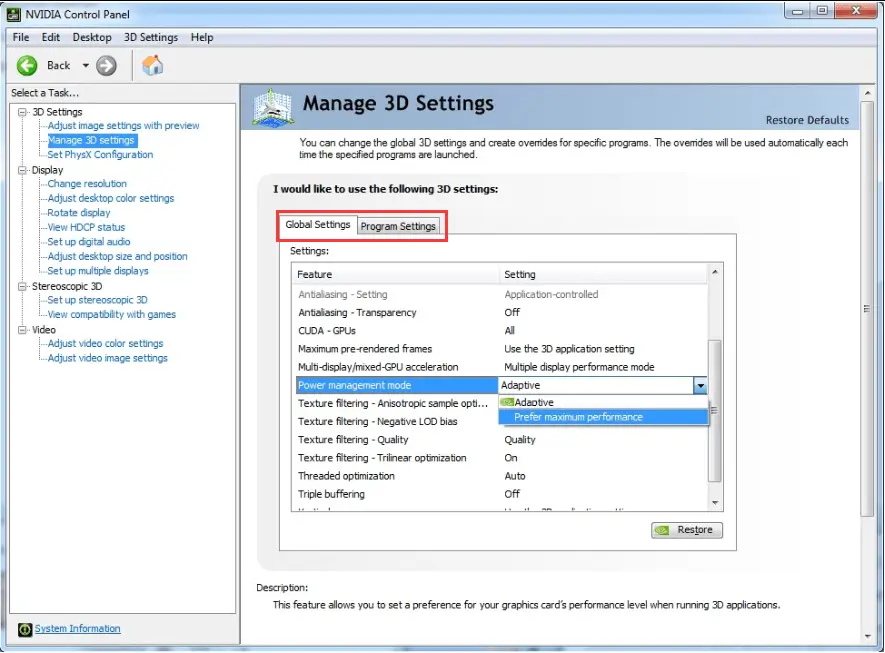
The Power management mode in NVIDIA Control Panel often affects not your average FPS, but frametime stability. On some systems, Adaptive/Normal can cause clock fluctuations and tiny hitches that feel like input lag, even though it’s actually stutter. That’s why many Rust players set it to Prefer maximum performance, so clocks stay more consistent during gameplay. It’s a common tweak to reduce jitter and indirectly improve how responsive the game feels.
A quick “before/after” test
You don’t need an expensive analyzer monitor just to tell whether things got better. The key is to test in identical conditions on the same setup.
-
Pick one specific test location.
-
Enable an FPS + frametime overlay (whatever you like).
-
Do a short 2-3 minute run on the exact same route: camera turns, sprinting, jumping, a few shots.
-
Note how it feels.
-
Switch modes/settings mentioned above and repeat the same run.
If you have GeForce Experience and a compatible monitor, you can measure system latency using the Reflex Analyzer and the latency flash indicator - and enable the flash indicator inside Rust.
Presets
PvP preset (minimum latency)
-
NVIDIA Reflex: On+Boost
-
V-Sync: Off (in-game)
-
FPS cap: set it slightly below your stable maximum so you don’t sit at 99% GPU and build queues. If you’re on 144 Hz and you hold 160-180 FPS consistently, cap around 155-165.
-
NVIDIA Control Panel: Low Latency Mode Off
-
Power management: Prefer maximum performance
Balanced preset
-
NVIDIA Reflex: On
-
FPS cap: slightly below your stable average (so you don’t slam into GPU limits constantly)
-
V-Sync: Off if you care about pure responsiveness. If you use G-Sync and want tear-free smoothness, V-Sync requires a different setup approach.
-
Power management: Prefer maximum performance or Normal (test both by frametime)
Weak CPU vs weak GPU - what matters more
If you have a weak CPU:
-
Reflex: On+Boost
-
Lower CPU-heavy settings in Rust (draw distance, shadows, etc.) to reduce simulation pressure and stutter.
-
Keep a stable FPS cap so frametime doesn’t bounce.
If you have a weak GPU:
-
Reflex: On (or On+Boost if it feels better, but don’t expect miracles)
-
The main goal is avoiding constant high GPU saturation. Lower GPU-heavy settings (resolution, AA, shadows, post-processing) and set a sensible FPS cap. Reflex helps, but when the GPU is overloaded, latency gains are usually smaller.
Conclusion
Reflex can reduce input lag, but it’s not magic. It’s simply a tool that manages the render queue and CPU/GPU synchronization - and it may be exactly what you need, so it’s definitely worth testing.
The biggest bonuses among competitors and a bunch of fun modes where everyone can find something they enjoy - CobaltLab!